Pagination


Prompt
Dashboards at Razorpay, Stripe, and most admin tools need to show long lists of rows without dumping them all onto the page at once. The standard control is a page-size selector with a pair of Prev and Next buttons.
You are given a fixed list of 40 anime records. Build a table that shows only one page at a time, along with a control row that lets the user change the page size and move between pages.
The challenge looks small, but there are a few decisions that interviewers listen for: what belongs in state versus what can be derived, how to keep the page valid when the page size changes, and how to wire a semantic <table> with accessible controls.
Requirements
- The table shows only the current page of rows at any time
- A dropdown lets the user pick a page size of 5, 10, or 20
- Pressing Prev moves to the previous page; pressing Next moves to the next page
- Prev is disabled on the first page; Next is disabled on the last page
- The controls show the current page and the total number of pages
- Changing the page size should never leave the user on a page that no longer exists
Example
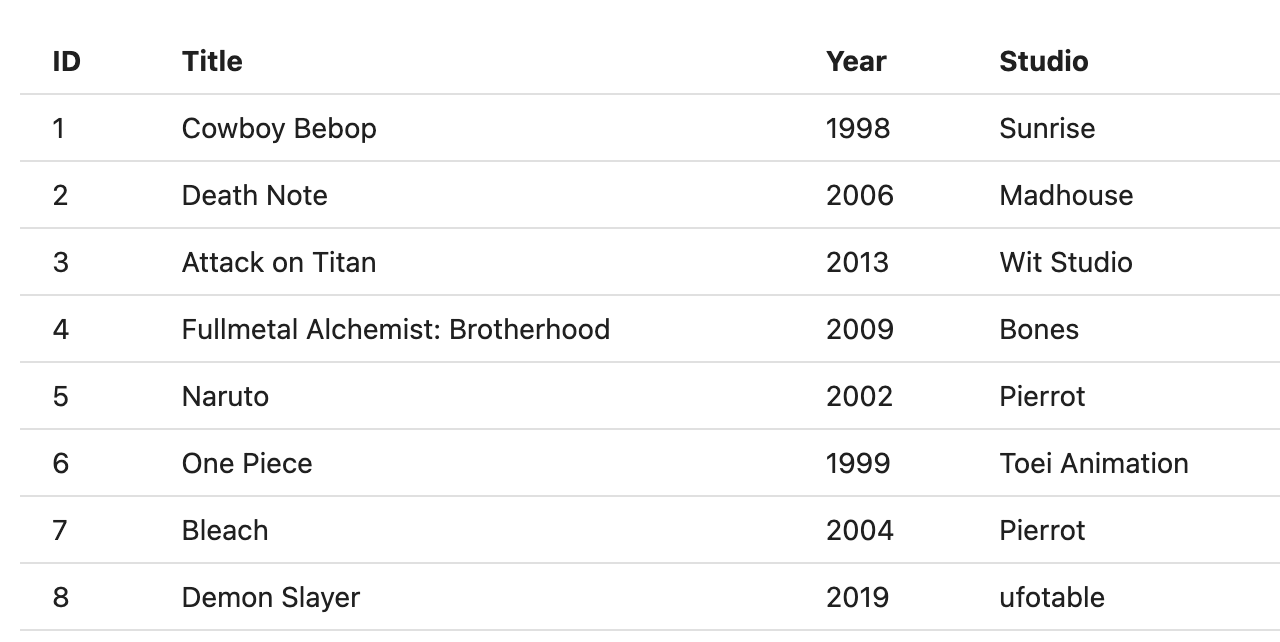
Playground
You only need two pieces of state: the current page and the page size. Everything else, including the total number of pages and the rows to display, can be derived on each render.
const [currentPage, setCurrentPage] = React.useState(1);const [pageSize, setPageSize] = React.useState(5);const totalPages = Math.ceil(items.length / pageSize);Slice the items array to get the rows for the current page. The start index is (currentPage - 1) * pageSize.
const startIndex = (currentPage - 1) * pageSize;const visibleRows = items.slice( startIndex, startIndex + pageSize);When the page size changes, the old currentPage might not exist anymore. Reset currentPage to 1 whenever the page size changes.
const handlePageSizeChange = (size) => { setPageSize(size); setCurrentPage(1);};Solution
Explanation
I will walk through the solution in the order I would write it in an interview: state first, then the table, then the pagination control, and finally the page-size edge case.
Picking the State
The first question: what needs to be in state, and what can be computed from that state?
We need to know which page the user is currently on and how many rows to show per page. Those two values cannot be derived from anything else, so they go in state.
const [currentPage, setCurrentPage] = React.useState(1);const [pageSize, setPageSize] = React.useState(5);Everything else follows from these two values plus the anime array:
totalPagesisMath.ceil(anime.length / pageSize)- The start index is
(currentPage - 1) * pageSize - The rows to render are
anime.slice(startIndex, startIndex + pageSize)
There is no reason to store totalPages or visibleRows in state. Both can be computed from the state we already have. Storing derived values is a common interview mistake. It creates two sources of truth, so bugs appear when one value updates and the other does not.
State vs Derived
A simple rule: if you can compute a value from existing state or props, do not store it. Store only what cannot be computed.
Many candidates add a third useState for totalPages and then use a useEffect to keep it updated when pageSize changes. This is extra code for no reason. totalPages comes from items.length and pageSize. Both are there on every render. Just compute it: Math.ceil(items.length / pageSize). No extra state, no effect, no useMemo needed.
Slicing the Page
With the state set up, getting the rows for the current page takes two lines:
App.js
const startIndex = (currentPage - 1) * pageSize;const visibleRows = anime.slice( startIndex, startIndex + pageSize);Two points worth saying out loud:
slicereturns a new array and does not change the original. Even if the interviewer does not ask, it is a good habit to mention.- We multiply by
pageSize, not by a hardcoded5. The math has to use the state, otherwise the dropdown will not change anything.
The Table
The starter already has a DataTable component. It uses a real <table> element rather than divs with display: grid. Divs can look the same, but screen readers will not announce the rows and columns, keyboard navigation will not work the same way, and the browser cannot size columns for you.
components/DataTable.js
export default function DataTable({ rows }) { return ( <table className="table"> <thead> <tr> <th>ID</th> <th>Title</th> <th>Year</th> <th>Studio</th> </tr> </thead> <tbody> {rows.map((row) => ( <tr key={row.id}> <td>{row.id}</td> <td>{row.title}</td> <td>{row.year}</td> <td>{row.studio}</td> </tr> ))} </tbody> </table> );}DataTable only renders rows. It does not know about pagination. The parent (App) holds the state and slices the array, then passes the sliced array to DataTable through the rows prop. On every page change the parent computes a new slice, and DataTable re-renders with it.
Building the Pagination Control
The starter Pagination component is empty. You build the whole control here. It has three jobs: change the page size, move between pages, and show the current page.
components/Pagination.js
export default function Pagination({ currentPage, totalPages, pageSize, pageSizeOptions, onPageChange, onPageSizeChange,}) { const isFirstPage = currentPage === 1; const isLastPage = currentPage === totalPages; return ( <div className="controls"> <select aria-label="Rows per page" value={pageSize} onChange={(event) => onPageSizeChange(Number(event.target.value)) } > {pageSizeOptions.map((size) => ( <option key={size} value={size}> Show {size} </option> ))} </select> <button type="button" aria-label="Previous page" disabled={isFirstPage} onClick={() => onPageChange(currentPage - 1)} > Prev </button> <span className="page-label"> Page {currentPage} of {totalPages} </span> <button type="button" aria-label="Next page" disabled={isLastPage} onClick={() => onPageChange(currentPage + 1)} > Next </button> </div> );}A few details to call out:
- The
<select>is controlled: itsvalueispageSizeand itsonChangesends the new value to the parent. Number(event.target.value)matters. Form values come in as strings. If you store the string, math likeitems.length / pageSizestill works but a strict check likepageSize === 10will not. Convert to a number at this boundary.- Prev and Next use the native
disabledattribute. A disabled button does not fireonClickand cannot be activated by keyboard, so you do not need extra guards. - Each control has an
aria-label. A button with only an icon or a select with no label is invisible to screen readers. "Rows per page", "Previous page", and "Next page" read clearly.
Wiring the App Together
App.js
const PAGE_SIZE_OPTIONS = [5, 10, 20];export default function App() { const [currentPage, setCurrentPage] = React.useState(1); const [pageSize, setPageSize] = React.useState(5); const totalPages = Math.ceil(anime.length / pageSize); const startIndex = (currentPage - 1) * pageSize; const visibleRows = anime.slice( startIndex, startIndex + pageSize ); const handlePageSizeChange = (size) => { setPageSize(size); setCurrentPage(1); }; return ( <main className="wrapper"> <DataTable rows={visibleRows} /> <Pagination currentPage={currentPage} totalPages={totalPages} pageSize={pageSize} pageSizeOptions={PAGE_SIZE_OPTIONS} onPageChange={setCurrentPage} onPageSizeChange={handlePageSizeChange} /> </main> );}PAGE_SIZE_OPTIONS is declared outside the component so it is not created again on every render. Values that never change do not need to be inside the function body.
The Page-Size Edge Case
This is the case most candidates miss. Say the user is on page 6 of 8 with pageSize set to 5. They change pageSize to 20. The new totalPages is 2. The user is now on page 6, which does not exist.
There are two reasonable fixes:
- Reset
currentPageto 1 whenpageSizechanges. - Clamp
currentPageto the newtotalPagesif it is out of range.
Option 1 is simpler and matches what most real products do. Changing how many rows you see usually means you want to start from the top. That is what the solution does:
const handlePageSizeChange = (size) => { setPageSize(size); setCurrentPage(1);};Common Pitfalls
Do not try to fix this with an effect:
React.useEffect(() => { if (currentPage > totalPages) setCurrentPage(totalPages);}, [totalPages]);This works, but it runs an extra render. The event handler already knows the page size is changing, so it can reset currentPage in the same update. Use an effect only when a change comes from outside, like a prop or a fetch. Do not use one to react to your own state update.
Styling
The styling is minimal on purpose. Native <select> and <button> elements already look fine and are keyboard and screen-reader accessible by default. No time spent on custom styles means more time for the logic.
.table { border-collapse: collapse; width: 100%; font-size: 14px;}.table th,.table td { padding: 8px 16px; text-align: left; border-bottom: 1px solid var(--gray-6);}.table th { font-weight: 700;}.controls { display: flex; align-items: center; gap: 12px; font-size: 14px;}.page-label { color: var(--gray-11);}Key decisions:
border-collapse: collapsemakes the<th>and<tr>borders share an edge, so there is no double line between rows.- Row separators are a single
border-bottomon each<th>and<tr>. No outer table border, no zebra striping, no shadows. - The only colors used are four gray tokens. No brand color is needed for this component.
What a Senior Signal Looks Like
If you have time left, mention one or two of these out loud. You do not have to implement them; naming them is the signal:
- URL state. Right now the page resets on refresh. Syncing
currentPageandpageSizeto the URL (viauseSearchParamsin Next.js or nuqs) makes the UI linkable and shareable. - Server pagination. For 40 rows in memory, client slicing is fine. For 40,000 rows, you would fetch by page and keep a loading state per request. The component API does not have to change; only
App.jsdoes. - Virtualization for very large pages. If a single page still holds thousands of rows (for example,
pageSizeof 5,000), rendering every<tr>slows the browser. A library likereact-windowor@tanstack/react-virtualrenders only the rows in view and reuses their DOM nodes as the user scrolls. This pairs well with pagination: pagination cuts the dataset into pages, virtualization keeps each page cheap to render. - Keyboard shortcuts.
ArrowLeftandArrowRightto move between pages is a power-user feature used by Gmail and Notion.
Interviewer Criteria
HTML/CSS
Did I use a semantic
<table>with<thead>and<tbody>instead of a grid of divs?Are my row separators a single
border-bottomrather than top and bottom borders that stack?Did I leave
<select>and<button>with their native browser styling instead of over-designing them?
JavaScript
Did I coerce the
<select>value to aNumberbefore storing it in state?Did I slice the items array with
(currentPage - 1) * pageSizeas the start index?Did I avoid mutating the items array?
React
Did I keep only
currentPageandpageSizein state, and derivetotalPagesand the visible rows on each render?Did I reset
currentPagewhen the page size changes so the user is never stranded on a page that no longer exists?Did I keep
DataTablepresentational and let the parent own the pagination state?
Accessibility
Do Prev and Next have
aria-labelvalues that read naturally when announced?Does the page-size select have a label associated with it (via
<label>oraria-label)?Do Prev and Next use the native
disabledattribute so they are skipped by keyboard navigation when unavailable?
Time Checkpoints
- 10:00 AM
Interview starts 👥
- 10:03 AM
Prompt clarified and data reviewed
- 10:08 AM
State for currentPage and pageSize wired up
- 10:14 AM
Table renders the sliced rows for the current page
- 10:22 AM
Pagination controls working with Prev/Next disabled states
- 10:27 AM
Page-size reset edge case handled and aria-labels added
- 10:30 AM
Discussion with interviewer